
How to leverage a Raspberry PI and a MIDI keyboard
Raspberry PI and a MIDI keyboard
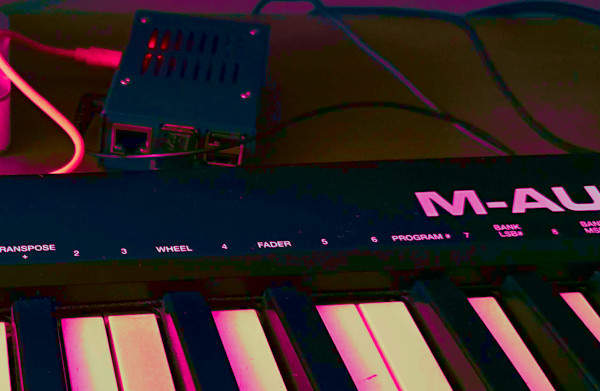
How to set up Raspberry Pi as a synthesizer when connected to a midi keyboard
I'm setting this up with the Pi as headless, meaning I don't need to connect the Pi to a screen when I want to play, just SSH into the Pi from another computer to start the software needed. That said, you might need to connect a screen first time to set up things like Wifi.
This is tested in 2020 on up-to-date Raspberry Pi 3 model B/Raspberry 4 and a M-audio Keystation 49 MK3 keyboard.
And I'm using the stock built-in soundcard. This is why you will see hw0 around in the commands. External soundcards will get another number.
Prerequisites
- a Raspberry Pi loaded up with Raspbian. Preferrably
Raspbian Litewhich will not install any GUI. - SSH enabled for running commands remote.
- MIDI keyboard connected to PI with USB
- Head phones with 3.5mm jack
Parts
- Part 1: First test with only FluidSynth, ALSA and the keyboard
- Part 2: Try to get better performance (less latency) by tweaking some and then use JACKD
Credits:
- Rreinolds brief article on the topic
- Raspberry Pi and realtime, low-latency audio
- Ted's Linux MIDI Guide
Part 1
Installing the basic software
ALSA
Alsa is usually already installed, but we need at least these two packages, so running this to either install or make sure you have it:
sudo apt install alsa-base alsa-firmware-loadersFluidsynth
sudo apt install fluidsynthConfigure
Audio
Append this line to file /boot/config.txt to get better quality on the sound of the 3.5mm jack output
audio_pwm_mode=2Then reboot
Start
Start Fluidsynth
Note that FluidR3_GM.sf2 is the sound font file which comes default with Fluidsynth. This is what make it sound like a piano when you play. You can download others when you want to test other instruments.
fluidsynth -a alsa -o audio.alsa.device=hw:0 /usr/share/sounds/sf2/FluidR3_GM.sf2When Fluidsynth has started you will be in a new command line interface with a prompt that is only a >.
Here you can change settings, type help to see options
Now you need a new terminal session to proceed
Or, you can use screen which allows you to create sessions that you can connect and disconnect from within the same terminal
List alsa outputs
aconnect -oShould output something like
client 14: 'Midi Through' [type=kernel]
    0 'Midi Through Port-0'
client 20: 'Keystation 49 MK3' [type=kernel,card=1]
    0 'Keystation 49 MK3 MIDI 1'
    1 'Keystation 49 MK3 MIDI 2'
client 128: 'FLUID Synth (887)' [type=user,pid=887]
    0 'Synth input port (887:0)'
Connect the MIDI keyboard to Fluidsynth
aconnect 20:0 128:0You should now be able to play and hear sounds, bit depending if the Pi was able to detect where you have connected sound output.
I am using headphones but I had to force the sound to the 3.5mm jack output. You can do this with raspi-config
- Run raspi-config
sudo raspi-config- Go to
Advanced options - Then
Audio - Select
Force 3.5mm ('headphone') jack
When you get sound we are all good.
Part 2
If you have followed the guide this far, even with a brand new Rpi4 - there will probably be a delay from keypress until the sound comes out of your headphones. Feels like a second to me, though it is probably not that much.
There are multiple possible bottlenecks, let's try to unwind some of those that has to do with config and settings first.
Give access to priority
This will give your user access to prioritize threading and memory locking, which is better for performance.
- Add yourself to group
audioon the raspberry - Then edit file
/etc/security/limits.confand put this at the end
@audio   -  rtprio      99
@audio   -  memlock     unlimited
Log out and in again, start fluidsynth and if you had an error message about priority thread before, it should be gone.
Run Fluidsynth with lower quality
Try lower the sample-rate (-r), buffer count (-c) and buffer size (-z)
If you have low volume you can use the --gain 1 argument.
fluidsynth \
-a alsa \
  -o audio.alsa.device=hw:0 \
  -r 22050 \
  -c 8 \
  -z 32 \
  /usr/share/sounds/sf2/FluidR3_GM.sf2
It might be a little bit better after these tweaks, but it never got good enough for me.
Jackd
After some googling it becomes clear that I need to try JACKD - which is described as a a low-latency audio server.
Install
sudo apt install jackd2 jack-toolsGive dbus rights
Create a file called /etc/dbus-1/system.d/jack.conf and put this content into. Just replace atle with your username.
<!-- atle jackd conf -->
<!DOCTYPE busconfig PUBLIC "-//freedesktop//DTD D-BUS Bus Configuration 1.0//EN"
 "http://www.freedesktop.org/standards/dbus/1.0/busconfig.dtd">
<busconfig>
    <policy user="atle">
        <allow own="org.freedesktop.ReserveDevice1.Audio0"/>
        <allow own="org.freedesktop.ReserveDevice1.Audio1"/>
    </policy>
</busconfig>
Start jackd
Some of these things are described in the blogpost Raspberry Pi and realtime, low-latency audio it will probably be a good idea to put this in a script:
sudo mount -o remount,size=128M /dev/shm
echo -n performance | sudo tee /sys/devices/system/cpu/cpu0/cpufreq/scaling_governor
export DBUS_SESSION_BUS_ADDRESS=unix:path=/run/dbus/system_bus_socket

jackd -P90 -p16 -t2000 -dalsa -dhw:0 -p512 -n3 -r44100
If you get into trouble starting jackd, please read Ted's Linux MIDI Guide as he explains how to test Jackd without using fluidsynth and more.
Start fluidsynth connecting to jackd
fluidsynth --server --audio-driver=jack --connect-jack-outputs /usr/share/sounds/sf2/FluidR3_GM.sf2and connect the MIDI keyboard to fluidsynth again like previously:
aconnect 20:0 128:0For me it now sounds like real time, finally. If you still have issues, you should also try with different headphones or speakers. I experienced a certain standalone speaker that had a significant delay and initially had me banging my head against the wall.